Products with ELD "GEO001"
- "Compliance-Now"-Hours-of-Service Version 1.0.1905.190710
- "Compliance-Now"-Hours-of-Service Version 11.1
- Compliance-Now Version 1.0.1905.190710
- Compliance-Now Version 1.0.1905.190710
- Compliance-Now Version 1.0.1905.190710
- Compliance-Now Version 1905.190710
Below you will find a list of products with the ELD "GEO001" obtained from our database, including their available manuals, documentation, and images.
Click the corresponding vendor name to obtain additional information on the manufacturer, as well as contact information for further troubleshooting.
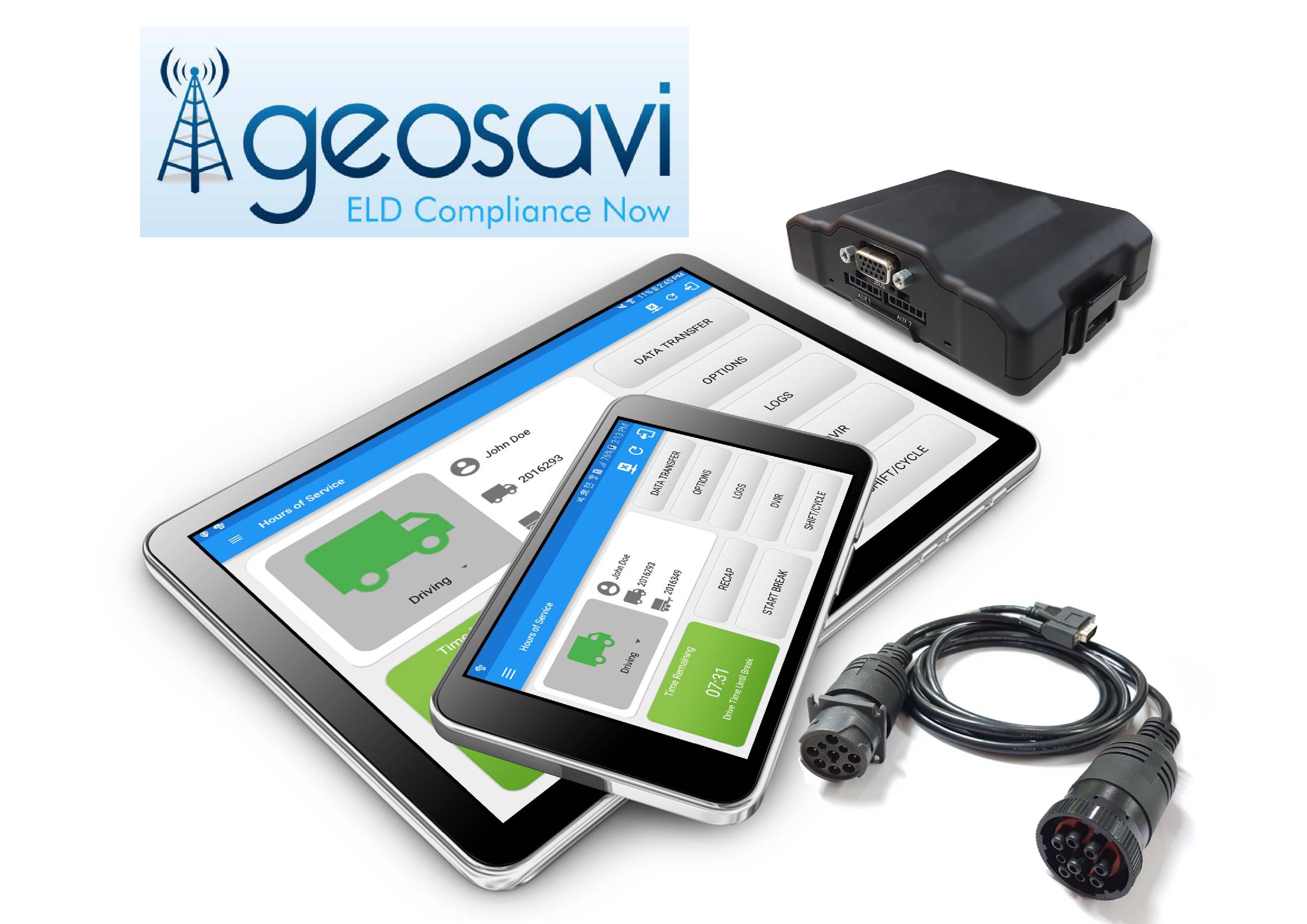
"Compliance Now" Hours of Service
| Vendor | Device Name | Model Number | Approved Version |
|---|---|---|---|
| | "Compliance Now" Hours of Service | Android & CalAmp 4230 | 1.0.1905.190710 |
Data Transfer and Reporting Procedures
>Malfunctions and Testing
Data Transfer The Compliance Now provides a standardized single-step compilation for the driver’s ELD records and initiation of the data transfer to authorized safety officials when requested during a roadside inspection. Selecting the Data Transfer button from the Main HOS Main Screen will display the list of supported data transfer options which are via Bluetooth, Email and USB. A Select Vehicle option is also available for selecting a vehicle upon performing the data transfer, this option enables the Compliance Now to produce a data file or a series of data files of ELD records for a subset of its vehicles used by the driver. * Transfer via Bluetooth - this option enables the user to transfer files through Bluetooth. The ELD prompts for an output file comment which the driver may enter (optional). After the input, if Bluetooth is not yet turned on, a prompt will appear asking you to turn it on. You will then be asked to select the device name to which the data will be transmitted via Bluetooth. * Transfer via Email - this option enables the user to transfer files through email. The ELD output file transferred is encrypted using AES-256 in FIPS Publication 197. Before sending, the ELD prompts for an output file comment which the driver may enter (optional). The device's default email application will then be opened before sending the email to which the data will be transferred. * Transfer via USB - this option enables the user to transfer files through USB (external devices). However, prior to saving the driver’s ELD file to an external storage/device, the ELD re-authenticates the driver account by asking for its password.Certification Statement
Malfunctions The Compliance Now ELD is capable of monitoring its compliance for various detectable malfunctions. At each instance when an ELD malfunction event is detected or cleared by the Compliance Now ELD, the ELD records the event. The recorded malfunction events are inconsistencies found while monitoring the ELD against FMCSA compliance requirements. Malfunction occurrences are indicated in the application header and in the Android notification toolbar with the letter ‘M’, respectively. The following shows the list of detectable malfunctions: ? Power Malfunction ? Engine Synchronization Malfunction ? Timing Malfunction ? Position Malfunction ? Data Recording Malfunction ? Data Transfer Malfunction Once the Malfunctions indicator ‘M’ is tapped, a dialog will be displayed with a list of the detected malfunction events alongside a ‘Clear’ button for each event. Tapping the Clear button will clear out the detected malfunction event.
User Manual:  Geosavi User Guide.pdf
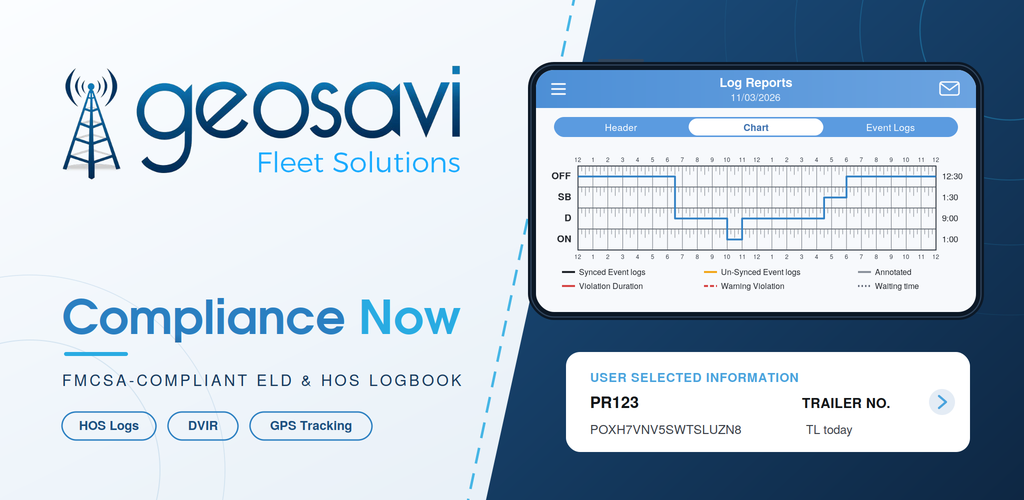
"Compliance Now" Hours of Service
| Vendor | Device Name | Model Number | Approved Version |
|---|---|---|---|
| | "Compliance Now" Hours of Service | Android & CalAmp 4230 | 11.1 |
Data Transfer and Reporting Procedures
> Telematic (Web Service, Email)Malfunctions and Testing
This ELD supports Option 1—telematics transfer methods. Transfer the electronic data using both: (i) wireless web services, and (ii) email. (i) Steps for Wireless Data Transfer via Web Services Driver has to click on Roadside Inspection on mobile app. Driver has to Select Wireless Web Services Transfer Method. Enter comments / inspection code. Click on Transfer Button. On successful transfer a message will pop up on the screen that indicates wireless web service transfer was successful (ii) Steps for Wireless Data Transfer Through E-Mail Driver has to click on Roadside Inspection on mobile App. Driver has to Select Email Transfer Method. Enter comments / inspection code. Click on Transfer Button On successful transfer a message will pop up on the screen that indicates Email transfer was successfulCertification Statement
Malfunctions The Compliance Now ELD is capable of monitoring its compliance for various detectable malfunctions. At each instance when an ELD malfunction event is detected or cleared by the Compliance Now ELD, the ELD records the event. The recorded malfunction events are inconsistencies found while monitoring the ELD against FMCSA compliance requirements. Malfunction occurrences are indicated in the application header and in the Android notification toolbar with the letter ‘M & D’, respectively. The following shows the list of detectable malfunctions: "Power compliance" malfunction "Engine Synchronization compliance" malfunction "Timing compliance" malfunction "Positioning compliance" malfunction "Data recording compliance" malfunction "Data transfer compliance" malfunction Upon detection of any malfunction or diagnostic event, the driver is immediately alerted through the application interface. The driver has three options to remain compliant: contact the support team for manufacturer assistance, or revert to paper logs. All malfunction and diagnostic codes, along with step-by-step resolution instructions, are documented in full within the Driver Manual, which will be shared with drivers and motor carrier.
User Manual: Geosavi User Guide.pdf
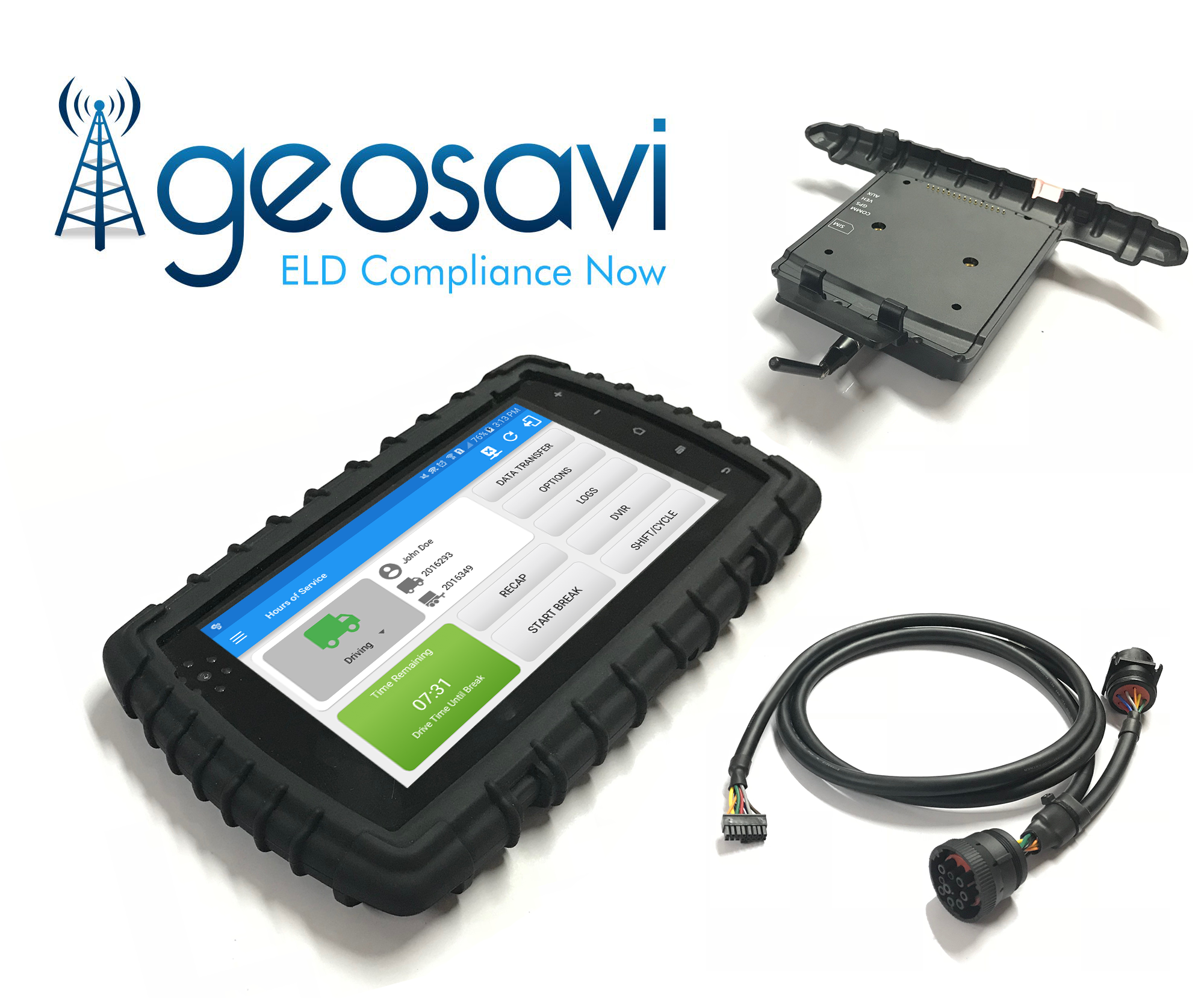
Compliance Now - Self Revoked as of 1786310931
| Vendor | Device Name | Model Number | Approved Version |
|---|---|---|---|
| | Compliance Now | Android & CalAmp Veosphere | 1.0.1905.190710 |
Data Transfer and Reporting Procedures
>Malfunctions and Testing
Data Transfer The Compliance Now provides a standardized single-step compilation for the driver’s ELD records and initiation of the data transfer to authorized safety officials when requested during a roadside inspection. Selecting the Data Transfer button from the Main HOS Main Screen will display the list of supported data transfer options which are via Bluetooth, Email and USB. A Select Vehicle option is also available for selecting a vehicle upon performing the data transfer, this option enables the Compliance Now to produce a data file or a series of data files of ELD records for a subset of its vehicles used by the driver. * Transfer via Bluetooth - this option enables the user to transfer files through Bluetooth. The ELD prompts for an output file comment which the driver may enter (optional). After the input, if Bluetooth is not yet turned on, a prompt will appear asking you to turn it on. You will then be asked to select the device name to which the data will be transmitted via Bluetooth. * Transfer via Email - this option enables the user to transfer files through email. The ELD output file transferred is encrypted using AES-256 in FIPS Publication 197. Before sending, the ELD prompts for an output file comment which the driver may enter (optional). The device's default email application will then be opened before sending the email to which the data will be transferred. * Transfer via USB - this option enables the user to transfer files through USB (external devices). However, prior to saving the driver’s ELD file to an external storage/device, the ELD re-authenticates the driver account by asking for its password.Certification Statement
Malfunctions The Compliance Now ELD is capable of monitoring its compliance for various detectable malfunctions. At each instance when an ELD malfunction event is detected or cleared by the Compliance Now ELD, the ELD records the event. The recorded malfunction events are inconsistencies found while monitoring the ELD against FMCSA compliance requirements. Malfunction occurrences are indicated in the application header and in the Android notification toolbar with the letter ‘M’, respectively. The following shows the list of detectable malfunctions: ? Power Malfunction ? Engine Synchronization Malfunction ? Timing Malfunction ? Position Malfunction ? Data Recording Malfunction ? Data Transfer Malfunction Once the Malfunctions indicator ‘M’ is tapped, a dialog will be displayed with a list of the detected malfunction events alongside a ‘Clear’ button for each event. Tapping the Clear button will clear out the detected malfunction event.
User Manual: Geosavi User Guide.pdf
Compliance Now - Self Revoked as of 1786310382
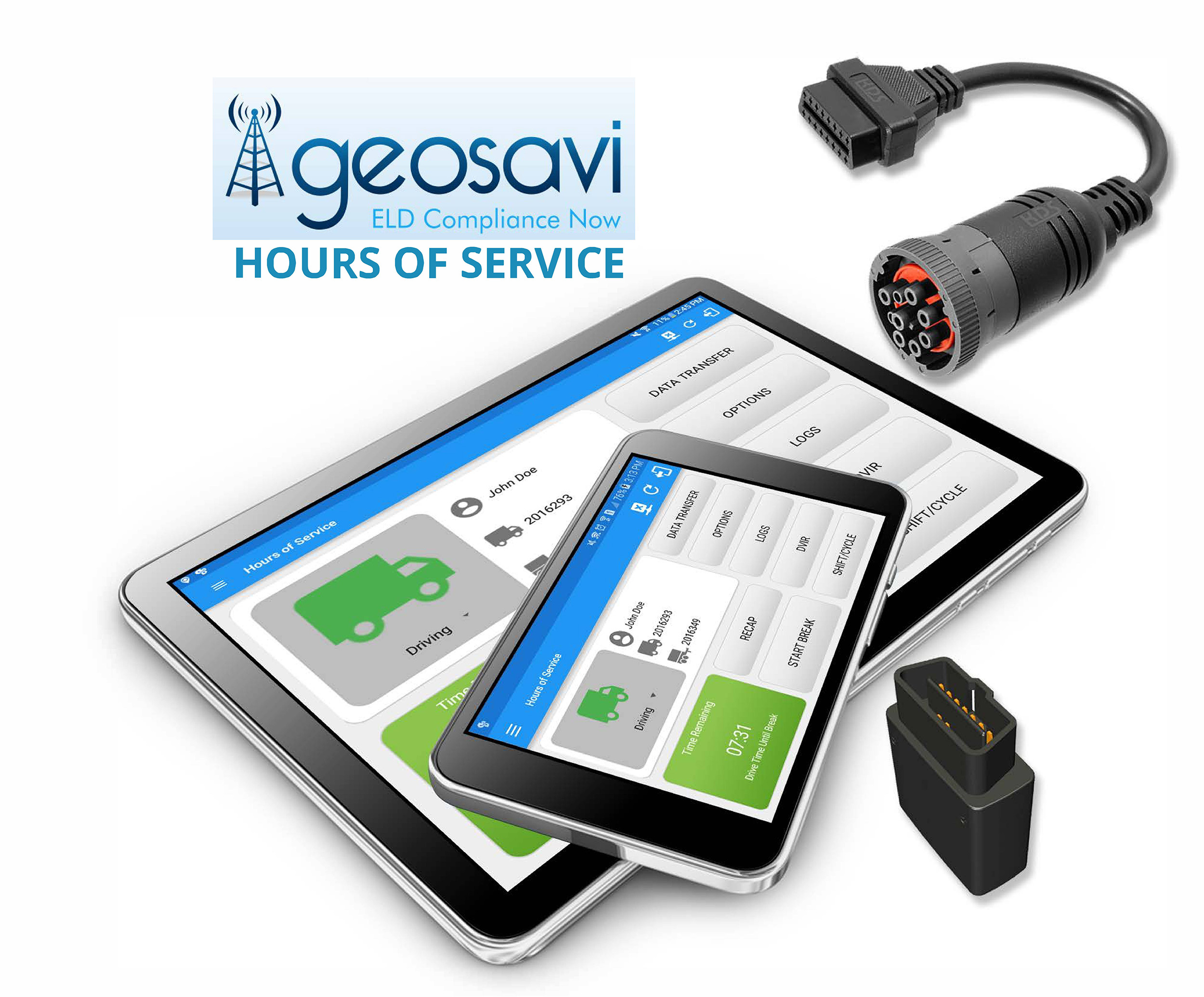
| Vendor | Device Name | Model Number | Approved Version |
|---|---|---|---|
| | Compliance Now | Android & Geometris | 1.0.1905.190710 |
Data Transfer and Reporting Procedures
>Malfunctions and Testing
Data Transfer The Compliance Now provides a standardized single-step compilation for the driver’s ELD records and initiation of the data transfer to authorized safety officials when requested during a roadside inspection. Selecting the Data Transfer button from the Main HOS Main Screen will display the list of supported data transfer options which are via Bluetooth, Email and USB. A Select Vehicle option is also available for selecting a vehicle upon performing the data transfer, this option enables the Compliance Now to produce a data file or a series of data files of ELD records for a subset of its vehicles used by the driver. * Transfer via Bluetooth - this option enables the user to transfer files through Bluetooth. The ELD prompts for an output file comment which the driver may enter (optional). After the input, if Bluetooth is not yet turned on, a prompt will appear asking you to turn it on. You will then be asked to select the device name to which the data will be transmitted via Bluetooth. * Transfer via Email - this option enables the user to transfer files through email. The ELD output file transferred is encrypted using AES-256 in FIPS Publication 197. Before sending, the ELD prompts for an output file comment which the driver may enter (optional). The device's default email application will then be opened before sending the email to which the data will be transferred. * Transfer via USB - this option enables the user to transfer files through USB (external devices). However, prior to saving the driver’s ELD file to an external storage/device, the ELD re-authenticates the driver account by asking for its password.Certification Statement
Malfunctions The Compliance Now ELD is capable of monitoring its compliance for various detectable malfunctions. At each instance when an ELD malfunction event is detected or cleared by the Compliance Now ELD, the ELD records the event. The recorded malfunction events are inconsistencies found while monitoring the ELD against FMCSA compliance requirements. Malfunction occurrences are indicated in the application header and in the Android notification toolbar with the letter ‘M’, respectively. The following shows the list of detectable malfunctions: ? Power Malfunction ? Engine Synchronization Malfunction ? Timing Malfunction ? Position Malfunction ? Data Recording Malfunction ? Data Transfer Malfunction Once the Malfunctions indicator ‘M’ is tapped, a dialog will be displayed with a list of the detected malfunction events alongside a ‘Clear’ button for each event. Tapping the Clear button will clear out the detected malfunction event.
User Manual: Geosavi User Guide.pdf
Compliance Now - Self Revoked as of 1786310630
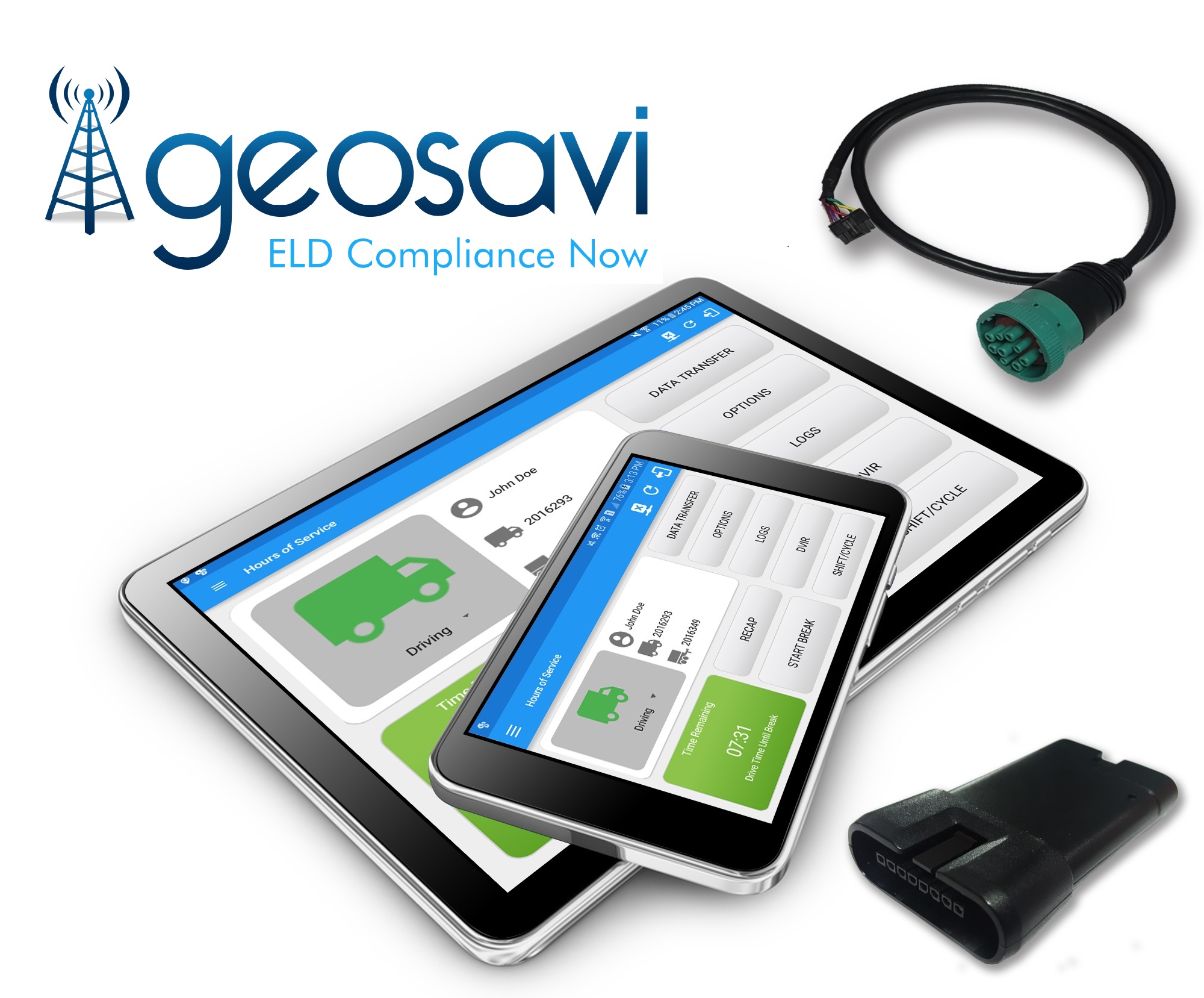
| Vendor | Device Name | Model Number | Approved Version |
|---|---|---|---|
| | Compliance Now | Android & Pacific Tracks | 1.0.1905.190710 |
Data Transfer and Reporting Procedures
>Malfunctions and Testing
Data Transfer The Compliance Now provides a standardized single-step compilation for the driver’s ELD records and initiation of the data transfer to authorized safety officials when requested during a roadside inspection. Selecting the Data Transfer button from the Main HOS Main Screen will display the list of supported data transfer options which are via Bluetooth, Email and USB. A Select Vehicle option is also available for selecting a vehicle upon performing the data transfer, this option enables the Compliance Now to produce a data file or a series of data files of ELD records for a subset of its vehicles used by the driver. * Transfer via Bluetooth - this option enables the user to transfer files through Bluetooth. The ELD prompts for an output file comment which the driver may enter (optional). After the input, if Bluetooth is not yet turned on, a prompt will appear asking you to turn it on. You will then be asked to select the device name to which the data will be transmitted via Bluetooth. * Transfer via Email - this option enables the user to transfer files through email. The ELD output file transferred is encrypted using AES-256 in FIPS Publication 197. Before sending, the ELD prompts for an output file comment which the driver may enter (optional). The device's default email application will then be opened before sending the email to which the data will be transferred. * Transfer via USB - this option enables the user to transfer files through USB (external devices). However, prior to saving the driver’s ELD file to an external storage/device, the ELD re-authenticates the driver account by asking for its password.Certification Statement
Malfunctions The Compliance Now ELD is capable of monitoring its compliance for various detectable malfunctions. At each instance when an ELD malfunction event is detected or cleared by the Compliance Now ELD, the ELD records the event. The recorded malfunction events are inconsistencies found while monitoring the ELD against FMCSA compliance requirements. Malfunction occurrences are indicated in the application header and in the Android notification toolbar with the letter ‘M’, respectively. The following shows the list of detectable malfunctions: ¿ Power Malfunction ¿ Engine Synchronization Malfunction ¿ Timing Malfunction ¿ Position Malfunction ¿ Data Recording Malfunction ¿ Data Transfer Malfunction Once the Malfunctions indicator ‘M’ is tapped, a dialog will be displayed with a list of the detected malfunction events alongside a ‘Clear’ button for each event. Tapping the Clear button will clear out the detected malfunction event.
User Manual: Geosavi User Guide.pdf
Compliance Now - Self Revoked as of 1786310737
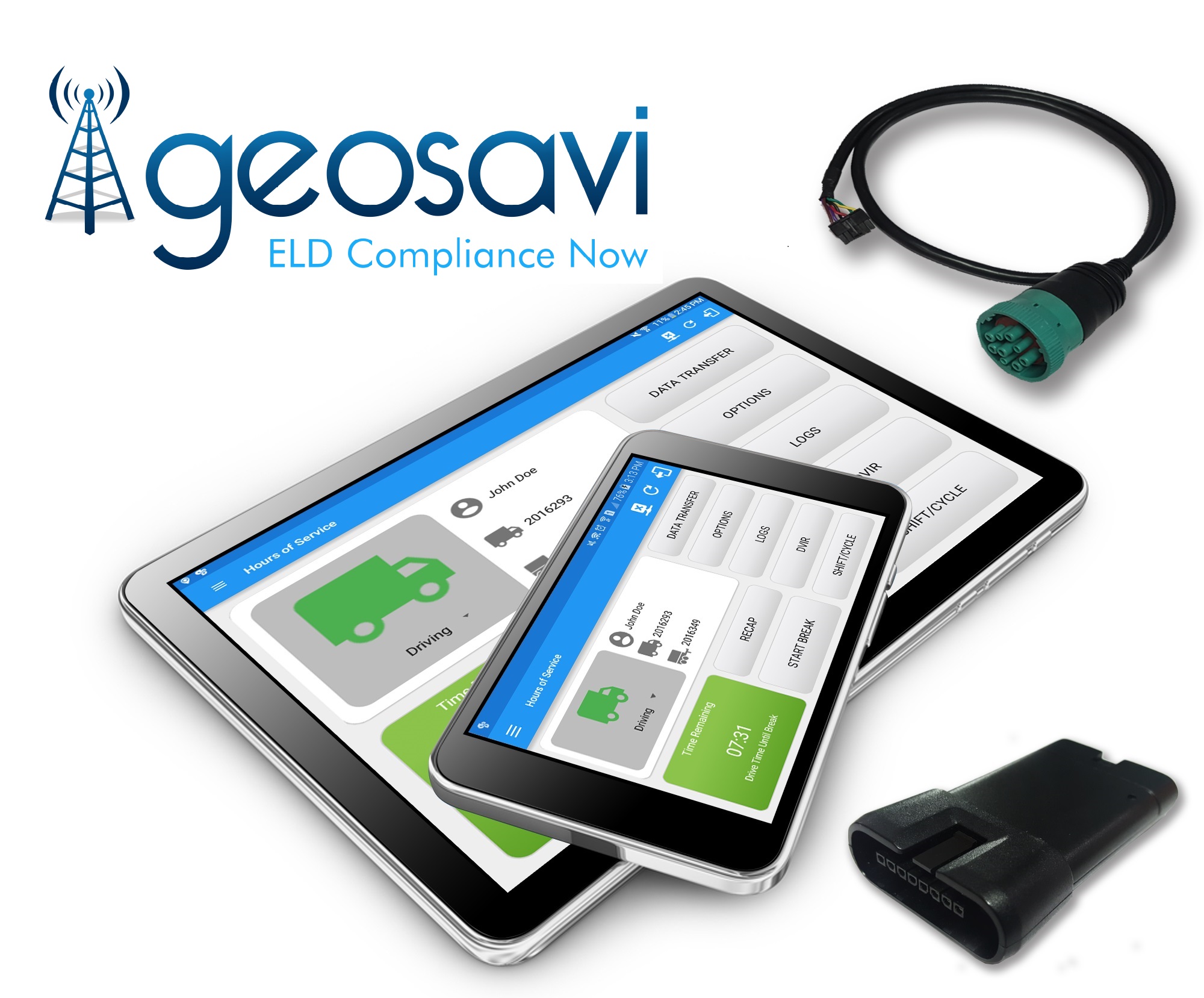
| Vendor | Device Name | Model Number | Approved Version |
|---|---|---|---|
| | Compliance Now | iOS & Pacific Tracks | 1905.190710 |
Data Transfer and Reporting Procedures
>Malfunctions and Testing
Data Transfer The Compliance Now provides a standardized single-step compilation for the driver’s ELD records and initiation of the data transfer to authorized safety officials when requested during a roadside inspection. Selecting the Data Transfer button from the Main HOS Main Screen will display the list of supported data transfer options which are via Bluetooth, Email and USB. A Select Vehicle option is also available for selecting a vehicle upon performing the data transfer, this option enables the Compliance Now to produce a data file or a series of data files of ELD records for a subset of its vehicles used by the driver. * Transfer via Bluetooth - this option enables the user to transfer files through Bluetooth. The ELD prompts for an output file comment which the driver may enter (optional). After the input, if Bluetooth is not yet turned on, a prompt will appear asking you to turn it on. You will then be asked to select the device name to which the data will be transmitted via Bluetooth. * Transfer via Email - this option enables the user to transfer files through email. The ELD output file transferred is encrypted using AES-256 in FIPS Publication 197. Before sending, the ELD prompts for an output file comment which the driver may enter (optional). The device's default email application will then be opened before sending the email to which the data will be transferred. * Transfer via USB - this option enables the user to transfer files through USB (external devices). However, prior to saving the driver’s ELD file to an external storage/device, the ELD re-authenticates the driver account by asking for its password.Certification Statement
Malfunctions The Compliance Now ELD is capable of monitoring its compliance for various detectable malfunctions. At each instance when an ELD malfunction event is detected or cleared by the Compliance Now ELD, the ELD records the event. The recorded malfunction events are inconsistencies found while monitoring the ELD against FMCSA compliance requirements. Malfunction occurrences are indicated in the application header and in the Android notification toolbar with the letter ‘M’, respectively. The following shows the list of detectable malfunctions: ¿ Power Malfunction ¿ Engine Synchronization Malfunction ¿ Timing Malfunction ¿ Position Malfunction ¿ Data Recording Malfunction ¿ Data Transfer Malfunction Once the Malfunctions indicator ‘M’ is tapped, a dialog will be displayed with a list of the detected malfunction events alongside a ‘Clear’ button for each event. Tapping the Clear button will clear out the detected malfunction event.
User Manual: Geosavi User Guide.pdf