
Products with ELD "ZEN1TH"
Below you will find a list of products with the ELD "ZEN1TH" obtained from our database, including their available manuals, documentation, and images.
Click the corresponding vendor name to obtain additional information on the manufacturer, as well as contact information for further troubleshooting.
Zenith ELD (Android)
| Vendor | Device Name | Model Number | Approved Version |
|---|---|---|---|
| | Zenith ELD (Android) | PT30 | 1.0.01 |
Data Transfer and Reporting Procedures
> Telematic (Web Service, Email)Malfunctions and Testing
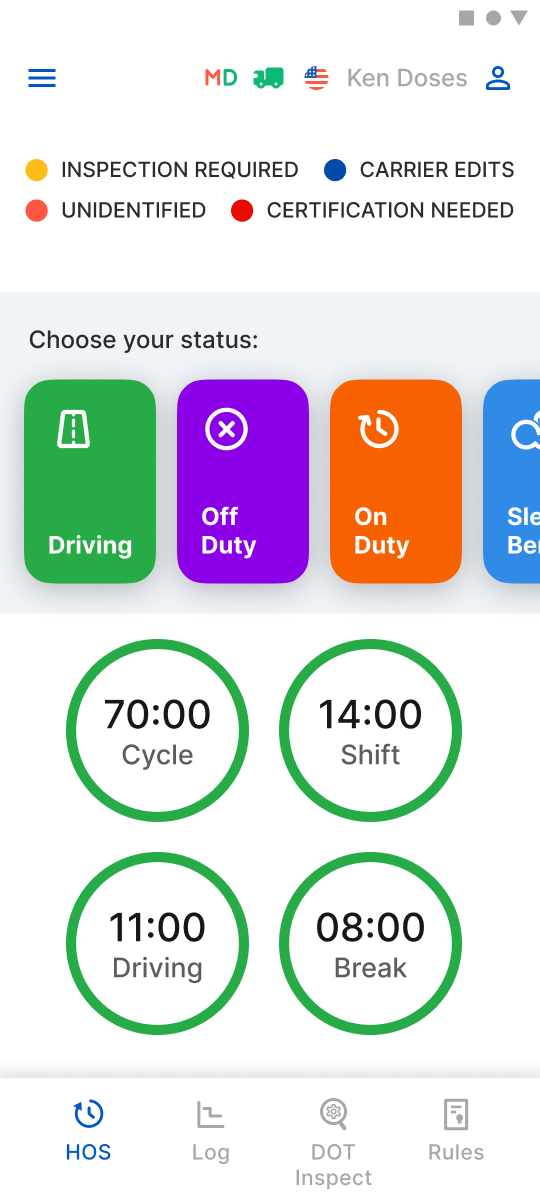
To transfer your ELD records to authorized Safety Officials, you need to open the "DOT Inspect" menu (Click on the "DOT Inspect" icon at the bottom bar of the Application on your device). The DOT Inspect menu summarizes all collected driver, truck, and trip data. You can also use this menu to transfer data to the FMCSA during an inspection, certify your logs, or view unidentified records. To begin, tap the Start Inspection button to check if your logs are ready for transfer to safety officials. If everything is in order, tap Transfer Data and choose one of the following methods to send your logs: - Send to Personal Email - Send to FMCSA Email - Send via Web Services (FMCSA) If you select Personal Email, you’ll need to enter the recipient's email address and include a comment. A comment is also required if you choose Web Services (FMCSA) or FMCSA Email. The reporting period may vary based on the regulations of the country where you are operating.Certification Statement
If there are any malfunctions or data diagnostic issues detected, the M/D icon at the top of the app screen will change its color from green to red. In case of a malfunction, the red "M" letter will indicate a Malfunction, and if there is a Data Inconsistency, the red "D" letter will indicate data error. Malfunctions and Data Diagnostic can also be displayed in the Logs menu as Malfunction event or Data Diagnostic event. As of the Malfunctions you can notice such types of issues: Engine Synchronization - there is no connection to the Engine Control Module (ECM). Please contact the motor carrier to restore the ECM link. Check and correct the logs if necessary, and restart the engine afterward. Positioning Compliance - there is no valid GPS signal. This can be fixed automatically by restoring the GPS signal. Data Recording Compliance - the device's storage is full. Please delete unnecessary files from your smartphone or tablet to free up at least 5 MB of space. Unregistered Odometer Change - odometer readings change when a vehicle is not moving. Please review the odometer data in the app or contact the motor carrier. Timing Compliance - the ELD provides an incorrect timeframe for the events. Please contact the motor carrier or the Zenith Support Team. Power Compliance - this occurs when an ELD is not powered for an aggregated in-motion driving time of 30 minutes or more over 24 hours across all driver profiles. This can be fixed automatically when the aggregated in-motion driving time is less than 30 minutes in a 24-hour period. As of the Data Diagnostics problem you can notice such types of issue: Engine synchronization - the ECM to ELD connection is lost. Contact the motor carrier and arrange for the ECM link to be restored. Missing Data Elements - indicates a temporary or permanent loss of the GPS/Internet connection or the ECM disconnection. Reconnect and reload the ELD device. Unidentified Driving Records - the unidentified driving lasts more than 30 minutes. Manage unidentified events until their duration drops to 15 minutes or less during 24 hours. Data Transfer - driving data cannot be transferred to the FMCSA server. In this case, it's best to contact the motor carrier or the Zenith’s Support Team, who can provide further assistance in resolving this issue. Power Data Diagnostic - the Engine was started while the device was off, and the ELD took more than 60 seconds to power up after turning the engine on. It can be fixed automatically once ELD is turned on or contact the motor carrier. To learn more about the problem you are facing, tap the M/D icon at the top of the app screen and check the details.
User Manual:  Zenith Android User Guide.pdf
Zenith ELD (iOS)
| Vendor | Device Name | Model Number | Approved Version |
|---|---|---|---|
| | Zenith ELD (iOS) | PT30 | 1.01.01 |
Data Transfer and Reporting Procedures
> Telematic (Web Service, Email)Malfunctions and Testing
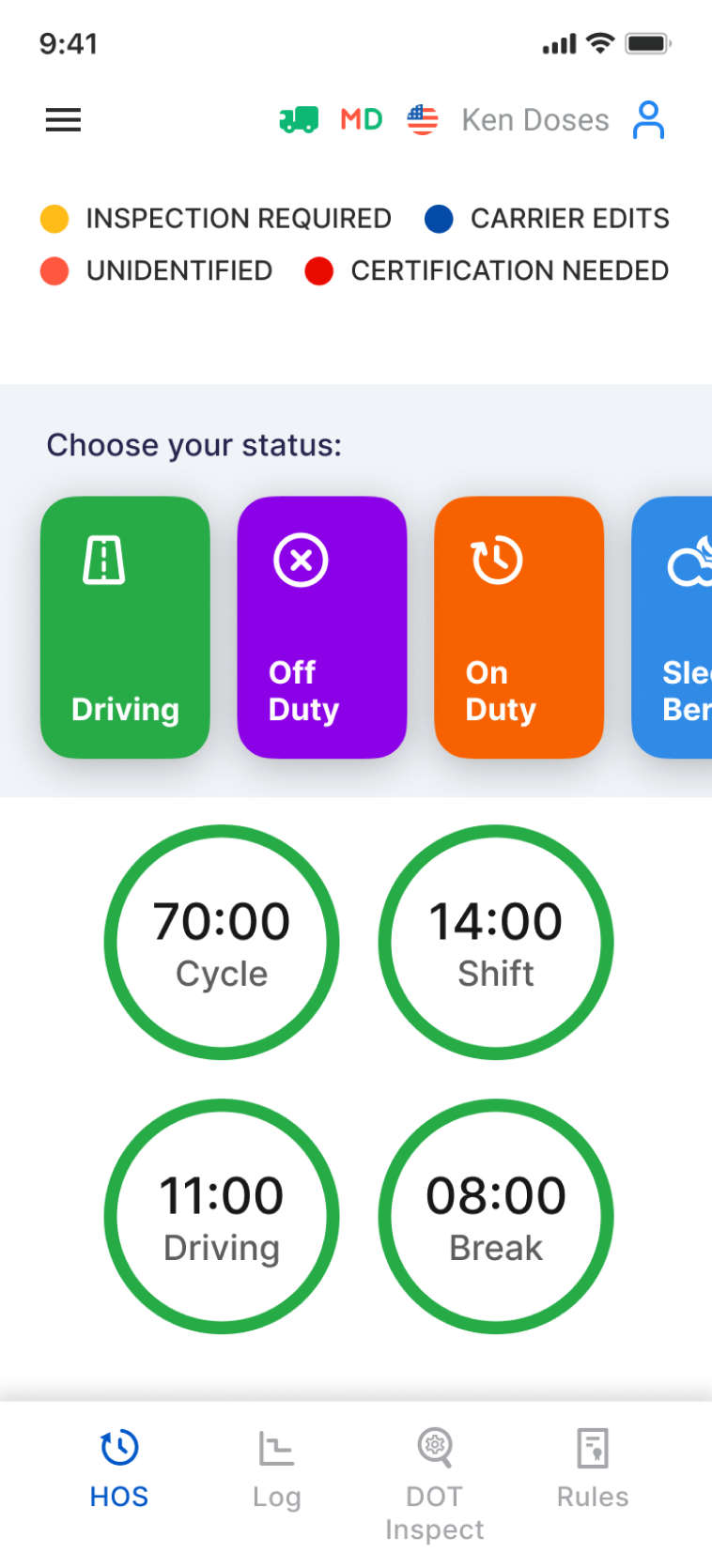
To transfer your ELD records to authorized Safety Officials, you need to open the "DOT Inspect" menu (Click on the "DOT Inspect" icon at the bottom bar of the Application on your device). The DOT Inspect menu summarizes all collected driver, truck, and trip data. You can also use this menu to transfer data to the FMCSA during an inspection, certify your logs, or view unidentified records. To begin, tap the Start Inspection button to check if your logs are ready for transfer to safety officials. If everything is in order, tap Transfer Data and choose one of the following methods to send your logs: - Send to Personal Email - Send to FMCSA Email - Send via Web Services (FMCSA) If you select Personal Email, you’ll need to enter the recipient's email address and include a comment. A comment is also required if you choose Web Services (FMCSA) or FMCSA Email. The reporting period may vary based on the regulations of the country where you are operating.Certification Statement
If there are any malfunctions or data diagnostic issues detected, the M/D icon at the top of the app screen will change its color from green to red. In case of a malfunction, the red "M" letter will indicate a Malfunction, and if there is a Data Inconsistency, the red "D" letter will indicate data error. Malfunctions and Data Diagnostic can also be displayed in the Logs menu as Malfunction event or Data Diagnostic event. As of the Malfunctions you can notice such types of issues: Engine Synchronization - there is no connection to the Engine Control Module (ECM). Please contact the motor carrier to restore the ECM link. Check and correct the logs if necessary, and restart the engine afterward. Positioning Compliance - there is no valid GPS signal. This can be fixed automatically by restoring the GPS signal. Data Recording Compliance - the device's storage is full. Please delete unnecessary files from your smartphone or tablet to free up at least 5 MB of space. Unregistered Odometer Change - odometer readings change when a vehicle is not moving. Please review the odometer data in the app or contact the motor carrier. Timing Compliance - the ELD provides an incorrect timeframe for the events. Please contact the motor carrier or the Zenith Support Team. Power Compliance - this occurs when an ELD is not powered for an aggregated in-motion driving time of 30 minutes or more over 24 hours across all driver profiles. This can be fixed automatically when the aggregated in-motion driving time is less than 30 minutes in a 24-hour period. As of the Data Diagnostics problem you can notice such types of issue: Engine synchronization - the ECM to ELD connection is lost. Contact the motor carrier and arrange for the ECM link to be restored. Missing Data Elements - indicates a temporary or permanent loss of the GPS/Internet connection or the ECM disconnection. Reconnect and reload the ELD device. Unidentified Driving Records - the unidentified driving lasts more than 30 minutes. Manage unidentified events until their duration drops to 15 minutes or less during 24 hours. Data Transfer - driving data cannot be transferred to the FMCSA server. In this case, it's best to contact the motor carrier or the Zenith’s Support Team, who can provide further assistance in resolving this issue. Power Data Diagnostic - the Engine was started while the device was off, and the ELD took more than 60 seconds to power up after turning the engine on. It can be fixed automatically once ELD is turned on or contact the motor carrier. To learn more about the problem you are facing, tap the M/D icon at the top of the app screen and check the details.
User Manual: Zenith iOS User Guide.pdf