
Products with ELD "2Xy8aB"
Below you will find a list of products with the ELD "2Xy8aB" obtained from our database, including their available manuals, documentation, and images.
Click the corresponding vendor name to obtain additional information on the manufacturer, as well as contact information for further troubleshooting.
Super Dispatch ELD
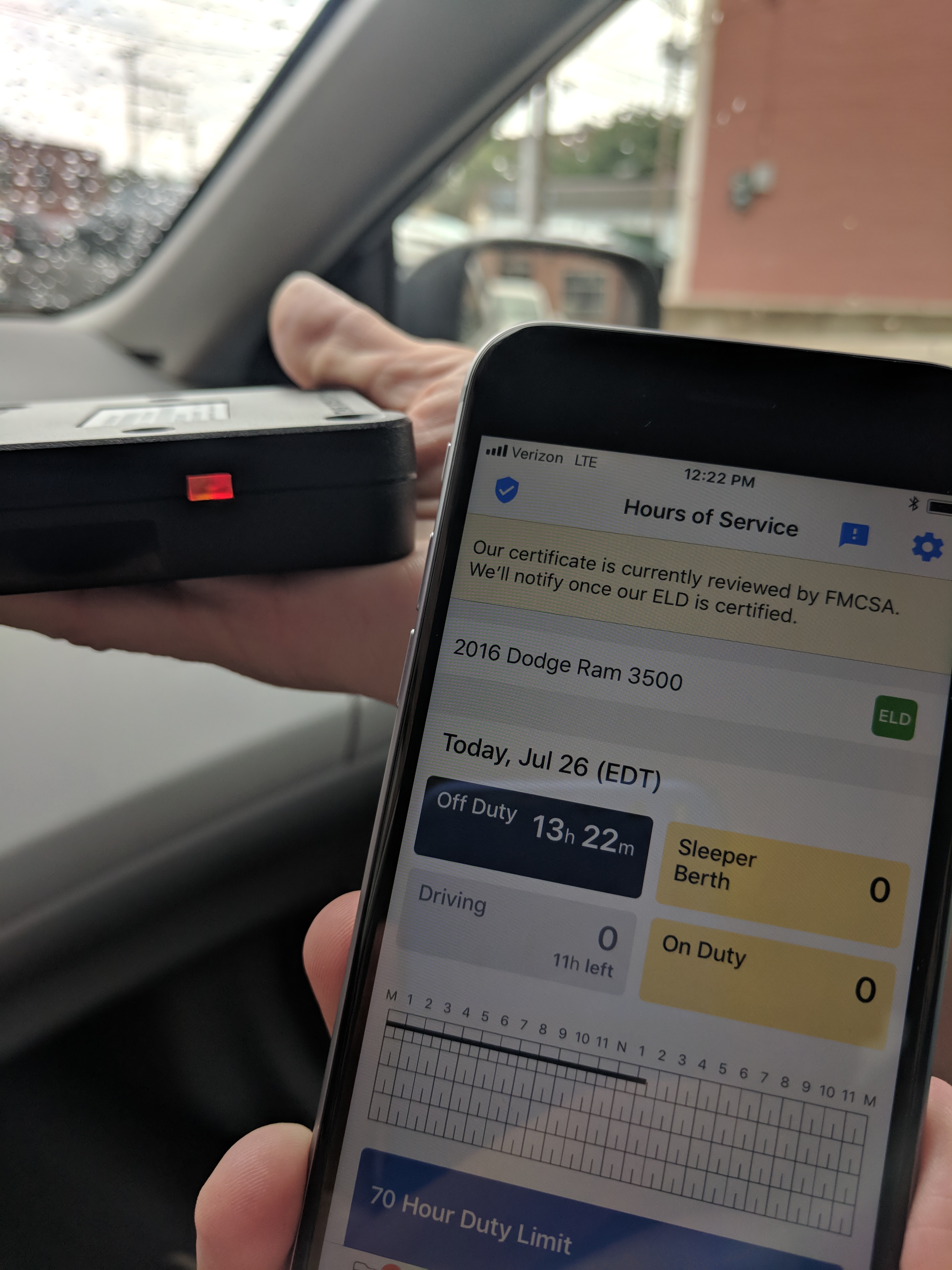
| Vendor | Device Name | Model Number | Approved Version |
|---|---|---|---|
| | Super Dispatch ELD | PT30_953C | 1.0.0 |
Data Transfer and Reporting Procedures
>Malfunctions and Testing
Super Dispatch's ELD supports the telematics option for data transfer via Web Service and Email. To generate a report, and transfer it to an authorized safety official, the driver needs to do the following: 1. Tap on the "Inspection" button at the top of Super Dispatch's Hours of Service section. This will bring you to Inspection Mode. 2. Once in Inspection Mode, select "Send via Web Service." 3. Type any comments you would like to associate with the inspection before it is sent. This is an output file comment. 4. Tap "OK" or "Send" after your comment to continue. 5. Or choose “Send via Email.” and enter an output file comment. 6. Click “Send” and the report will be sent to the FMCSA email.Certification Statement
List of supported malfunctions: 1. Power compliance 2. Engine synchronization compliance 3. Timing compliance 4. Positioning compliance 5. Data recording compliance 6. Data transfer compliance 7. Other
User Manual:  ELDUserManual.pdf
Super ELD
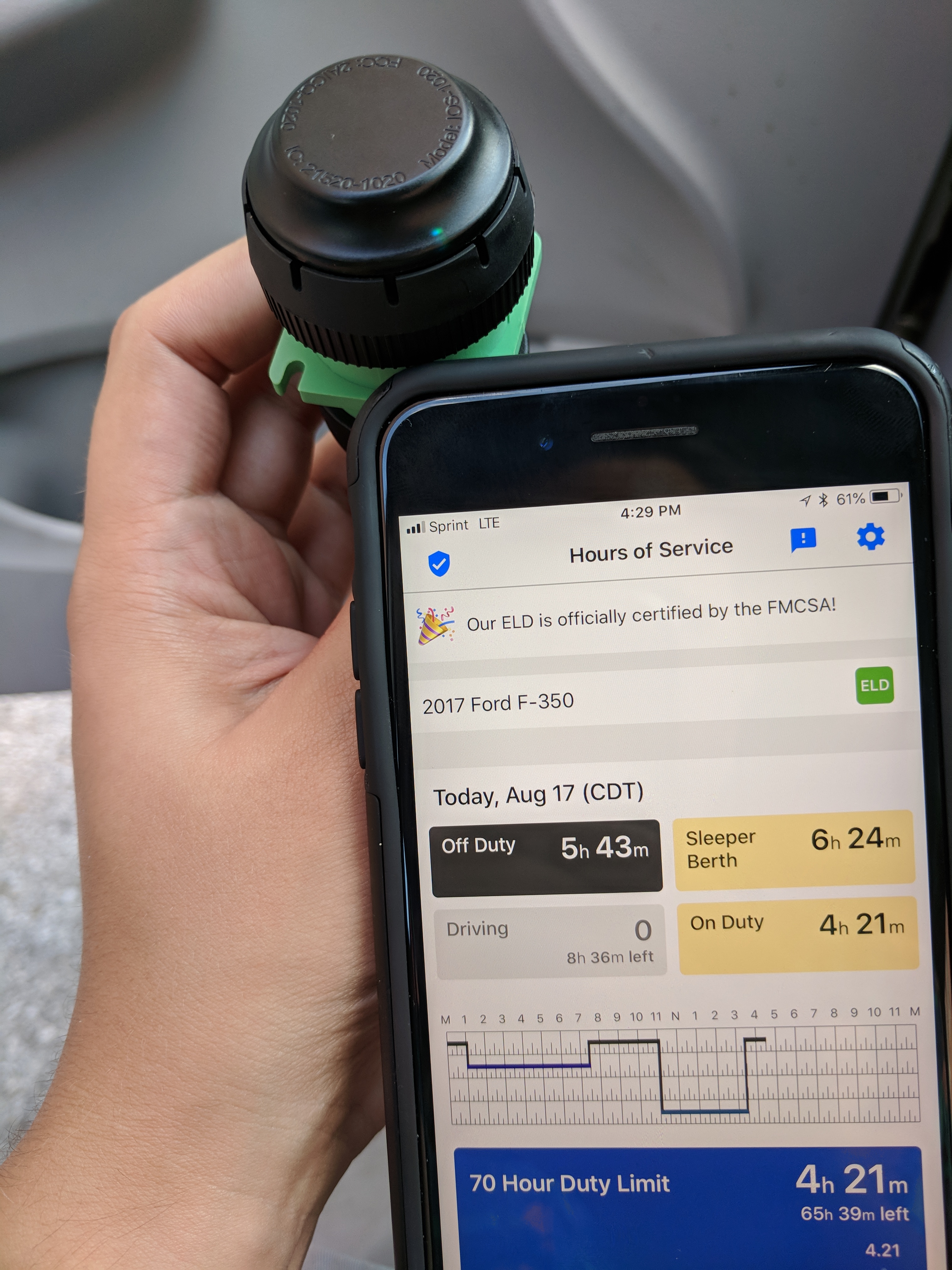
| Vendor | Device Name | Model Number | Approved Version |
|---|---|---|---|
| | Super ELD | ELD 2.0 | 2.19.4 or higher |
Data Transfer and Reporting Procedures
>Malfunctions and Testing
The Super ELD supports telematics data transfer via Web Service and Email. To generate a report, and transfer it to an authorized safety official, the driver must: 1. Tap on the "Inspection" button at the top of Super Dispatch's Hours of Service section. This will bring you into Inspection Mode. 2. Once in Inspection Mode, select "Send via Web Service." 3. Type any comments you would like to associate with the inspection before it is sent. This is an output file comment. 4. Tap "OK" or "Send" after your comment to continue. 5. Or choose “Send via Email” and enter an output file comment. 6. Click “Send” and the report will be sent to the FMCSA email.Certification Statement
List of supported malfunctions: 1. Power compliance 2. Engine synchronization compliance 3. Timing compliance 4. Positioning compliance 5. Data recording compliance 6. Data transfer compliance 7. Other
User Manual: Super_ELD_User_Manual.pdf