
Products with ELD "eldcld"
Below you will find a list of products with the ELD "Eldcld" obtained from our database, including their available manuals, documentation, and images.
Click the corresponding vendor name to obtain additional information on the manufacturer, as well as contact information for further troubleshooting.
CLD
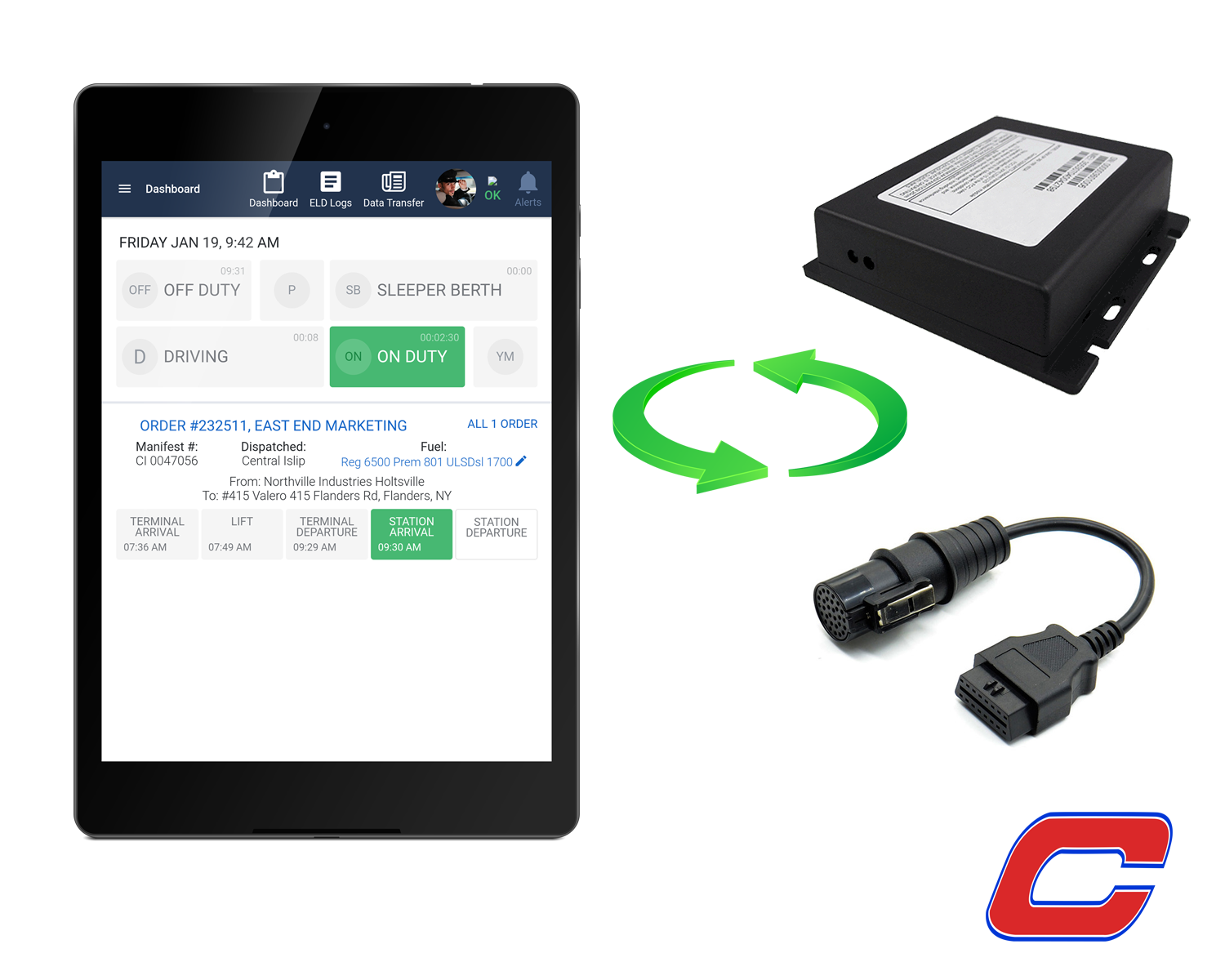
| Vendor | Device Name | Model Number | Approved Version |
|---|---|---|---|
| | CLD | 0.1 | 0.0.62 |
Data Transfer and Reporting Procedures
> Telematic (Web Service, Email)Malfunctions and Testing
Our ELD system is capable of producing and transferring the ELD records via telematics transfer methods: Wireless Web services and Email. Below are the steps for the both methods. Step 1: Click on "Data Transfer" button in the top bar (when you are on Dashboard page) Step 2: You are on "Data Transfer" page now. Authorized safety official may fill a key phrase or code in "Comment" input field during an inspection as specified in accordance with the section "4.3.2.5. Driver's Entry of an Output File Comment". Step 3: a) Click on "Send Email" button to initiate ELD data records output file generation and sending to a specific FMCSA email address. ELD data records output file generation for the current 24-hour period and the previous 7 consecutive days will take place on the supporting server. After generation this file will be automatically sent to the FMCSA email address. b) Or click on "Send Via Web Service" button to initiate ELD data records output file generation and sending to FMCSA via Web Services. ELD data records output file generation for the current 24-hour period and the previous 7 consecutive days will take place on the supporting server. After generation this file will be automatically sent to the FMCSA via Web Services. Step 4: After clicking any of the above mentioned buttons you will see a message indicating successful process initiation: "ELD Data Records output file generating has been initiated. It will be sent soon."Certification Statement
At Each instance when an ELD malfunction or data diagnostic event is detected or cleared by the ELD, the ELD records the event. The recorded malfunctions and data diagnostic events are inconsistencies found while monitoring the app/ELD against FMCSA compliance requirements. These instances are indicated in the application header with 2 icon indicators (Diagnostic and Malfunction). If an Diagnostic or Malfunction Event occurred appropriate indicator will become red and Record will be created and saved in ELD. To know more info about the event occured, click on the red indicator and it will show popup with the event message. If event has been cleared by the ELD indicator it will then go back to a normal state. Here is the list of messages and codes for Diagnostic and Malfunction Events: Malfunction Events (Code - Description) P - “Power compliance” malfunction E - “Engine synchronization compliance” malfunction T - “Timing compliance” malfunction L - “Positioning compliance” malfunction R - “Data recording compliance” malfunction S - “Data transfer compliance” malfunction O - “Other” ELD detected malfunction Diagnostiс Events (Code - Description) 1 - “Power data diagnostic” event 2 - “Engine synchronization data diagnostic” event 3 - “Missing required data elements data diagnostic” event 4 - “Data transfer data diagnostic” event 5 - “Unidentified driving records data diagnostic” event 6 - “Other” ELD identified diagnostic event
User Manual:  CBC manual v2.1.pdf