
Products with ELD "TTHOS1"
Below you will find a list of products with the ELD "TTHOS1" obtained from our database, including their available manuals, documentation, and images.
Click the corresponding vendor name to obtain additional information on the manufacturer, as well as contact information for further troubleshooting.
ThinAir ELD - Self Revoked as of
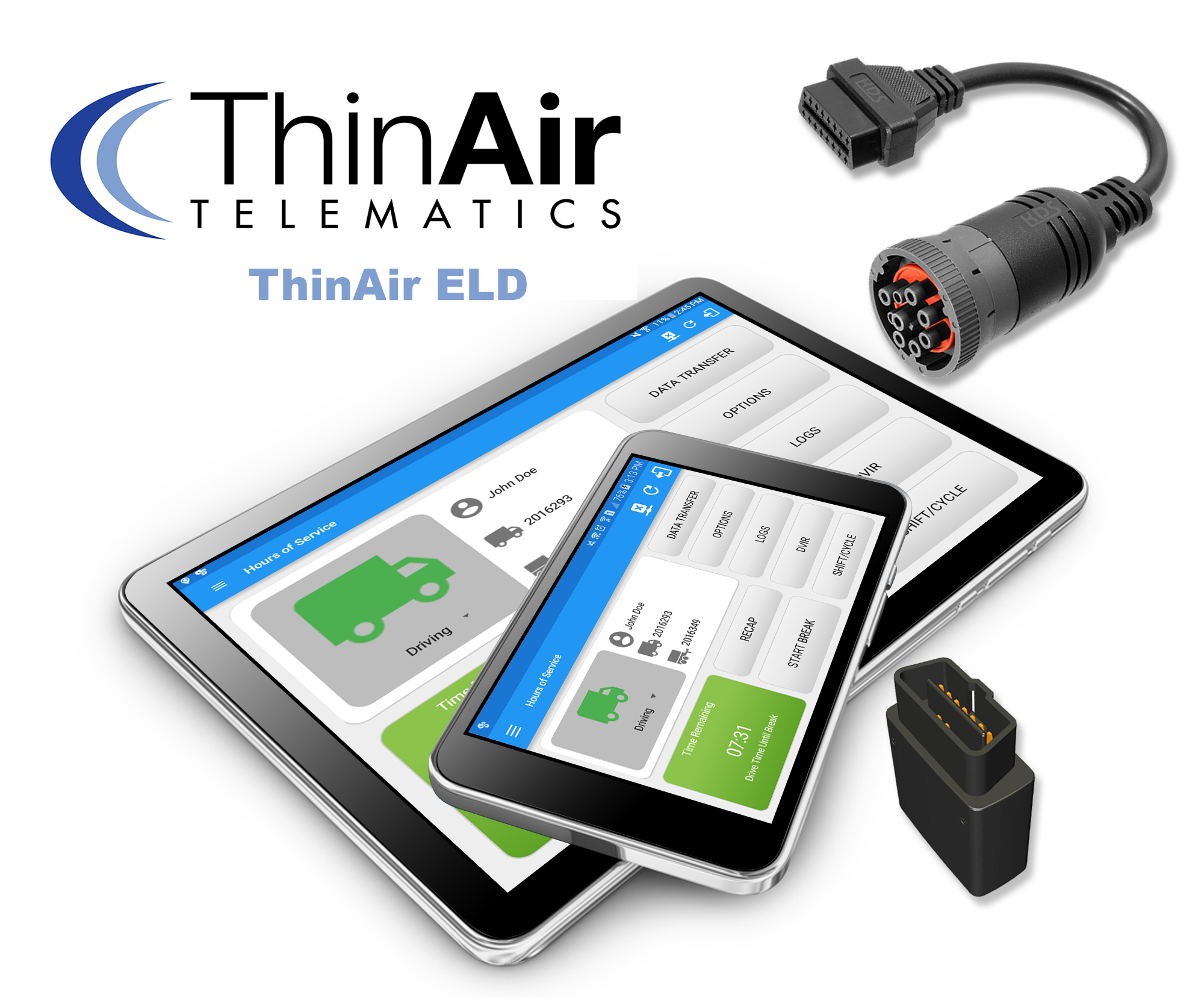
| Vendor | Device Name | Model Number | Approved Version |
|---|---|---|---|
| | ThinAir ELD | Android & Geometris | 1.0.2001.200225 |
Data Transfer and Reporting Procedures
>Malfunctions and Testing
The ThinAir ELD provides a standardized single-step compilation for the driver’s ELD records and initiation of the data transfer to authorized safety officials when requested during a roadside inspection. This can be done by selecting the Roadside Inspection button from the main HOS dashboard and selecting the option for Data Transfer. A list of supported data transfer options is then displayed which include Bluetooth, Email and USB. A Select Vehicle option is also available for selecting a vehicle upon performing the data transfer, this option enables the ThinAir ELD to produce a data file or a series of data files of ELD records for a subset of its vehicles used by the driver. Transfer via Bluetooth - this option enables the user to transfer files through Bluetooth. The ELD prompts for an output file comment which the driver may enter (optional). After the input, if Bluetooth is not yet turned on, a prompt will appear asking you to turn it on. You will then be asked to select the device name to which the data will be transmitted via Bluetooth. Transfer via Email - this option enables the user to transfer files through email. The ELD output file transferred is encrypted using AES-256 in FIPS Publication 197. Before sending, the ELD prompts for an output file comment which the driver may enter (optional). The device's default email application will then be opened before sending the email to which the data will be transferred. Transfer via USB - this option enables the user to transfer files through USB (external devices). However, prior to saving the driver’s ELD file to an external storage/device, the ELD re-authenticates the driver account by asking for its password.Certification Statement
The ThinAir ELD is capable of monitoring its compliance for various detectable malfunctions. At each instance when an ELD malfunction event is detected or cleared by the ThinAir ELD, the ELD records the event. The recorded malfunction events are inconsistencies found while monitoring the ELD against FMCSA compliance requirements. Malfunction occurrences are indicated in the application header and in the Android notification toolbar with the letter ‘M’, respectively. The following shows the list of detectable malfunctions: Power Malfunction Engine Synchronization Malfunction Timing Malfunction Position Malfunction Data Recording Malfunction Data Transfer Malfunction Once the Malfunctions indicator ‘M’ is tapped, a dialog will be displayed with a list of the detected malfunction events alongside a ‘Clear’ button for each event. Tapping the Clear button will clear out the detected malfunction event.
User Manual:  ThinAir ELD User Guide.pdf
ThinAir ELD
| Vendor | Device Name | Model Number | Approved Version |
|---|---|---|---|
| | ThinAir ELD | DA-AP | 3003.2 and above |
Data Transfer and Reporting Procedures
> Local (USB, Bluetooth) , Telematic (Web Service, Email)Malfunctions and Testing
The ThinAir ELD system streamlines the process of compiling and transferring driver's ELD records to authorized safety officials during roadside inspections. Drivers can initiate this process through the mobile application by selecting "Roadside Inspection" and then "Data Transfer." The system offers three transfer options: Bluetooth, Email, and USB. Bluetooth transfer allows wireless transmission after an optional file comment and device selection. Email transfer encrypts the file using AES-256 and sends it via the device's default email app. USB transfer requires driver re-authentication before saving to an external device. Additionally, the Admin Portal web application provides a "Select Vehicle" feature under Data Transfer, enabling the creation of CSV files for specific vehicles. It also offers a Webservice option for direct ELD record submission, complete with a Safety Official/Investigation Code to ensure proper receipt by the inspecting officer.Certification Statement
The ThinAir ELD is capable of monitoring its compliance for various detectable malfunctions. At each instance when an ELD malfunction event is detected or cleared by the ThinAir ELD, the ELD records the event. The recorded malfunction events are inconsistencies found while monitoring the ELD against FMCSA compliance requirements. Malfunction occurrences are indicated in the application header and in the Android notification toolbar with the letter ‘M’, respectively. The following shows the list of detectable malfunctions: Power Malfunction Engine Synchronization Malfunction Timing Malfunction Position Malfunction Data Recording Malfunction Data Transfer Malfunction Once the Malfunctions indicator ‘M’ is tapped, a dialog will be displayed with a list of the detected malfunction events alongside a ‘Clear’ button for each event. Tapping the Clear button will clear out the detected malfunction event.
User Manual: ThinAir ELD User Guide.pdf