
Products with ELD "SL0101"
- Smart-eLog-for-Android Version 1.0.02 or higher
- Smart-eLog-for-Android Version 1.01.01
- Smart-eLog-for-iOS Version 1.01.01
Below you will find a list of products with the ELD "SL0101" obtained from our database, including their available manuals, documentation, and images.
Click the corresponding vendor name to obtain additional information on the manufacturer, as well as contact information for further troubleshooting.
Smart eLog for Android
| Vendor | Device Name | Model Number | Approved Version |
|---|---|---|---|
| | Smart eLog for Android | PT30 | 1.0.02 or higher |
Data Transfer and Reporting Procedures
> Telematic (Web Service, Email)Malfunctions and Testing
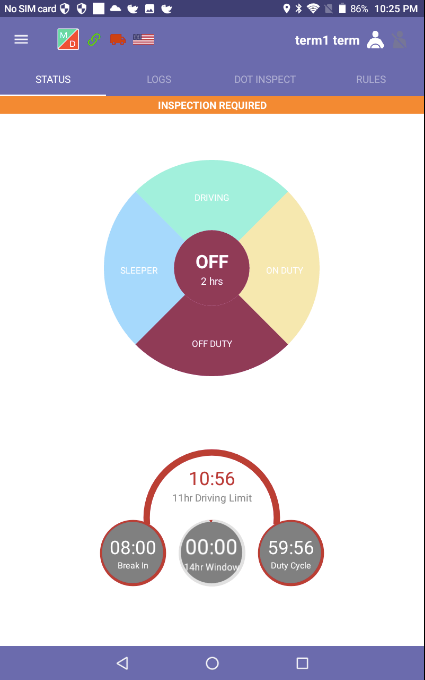
The Dot Inspect tab will open an interface for managing the data transferred to the FMCSA and the data that was not synchronized properly. The tab will give you access to the following options: - Certify Records; - Start Inspection; - Unidentified Records; - And the full truck and trip data collected (graph, odometer readings, carrier, truck, trailer, etc.) Once you pressed “Start Inspection”, you will be allowed to transfer the data to the safety official by clicking Transfer Data to Safety Official. You may use one of the following methods for such procedure: - Send the data directly to the FMCSA server. - Send the data to the email address provided by the FMCSA. - Send the data to the email provided by the DOT inspector.Certification Statement
Whenever the driver faces a data diagnostic or malfunctions event, the 'M/D' indicator on the application changes its color. If both parts of the icon are green, then everything is correct. If ‘D’ is red - the data diagnostic event is occurring. If ‘M’ is red - the malfunction is present. This icon may become red due to the loss of a GPS signal or loss of PT30 signal or other malfunctions. Here is the list of the types of malfunctioning may happen: GPS - you would need to re-check the connection or the GPS recording; Engine - odometer/engine hours/speed are not getting sent to the servers (in such case the error is on the PT30 side and the ELD should be sent to the mechanics for a check); Data recording - records in queue do not pass to the server (records should be deleted or pushed through again); Power Compliance Malfunctions - you can resolve it by contacting the mechanic or your motor carrier immediately; Timing Malfunctions - it can be resolved automatically or you may contact your motor carrier; Data Transfer Malfunctions - you would need to recheck the Internet connection.
User Manual:  User Guide Android.pdf
Smart eLog for Android
| Vendor | Device Name | Model Number | Approved Version |
|---|---|---|---|
| | Smart eLog for Android | PT30 | 1.01.01 |
Data Transfer and Reporting Procedures
> Telematic (Web Service, Email)Malfunctions and Testing
The Dot Inspect tab will open an interface for managing the data transferred to the FMCSA and the data that was not synchronized properly. The tab will give you access to the following options: - Certify Records; - Start Inspection; - Unidentified Records; - And the full truck and trip data collected (graph, odometer readings, carrier, truck, trailer, etc.) Once you pressed “Start Inspection”, you will be allowed to transfer the data to the safety official by clicking Transfer Data to Safety Official. You may use one of the following methods for such procedure: - Send the data directly to the FMCSA server. - Send the data to the email address provided by the FMCSA. - Send the data to the email provided by the DOT inspector.Certification Statement
Whenever the driver faces a data diagnostic or malfunctions event, the 'M/D' indicator on the application changes its color. If both parts of the icon are green, then everything is correct. If ‘D’ is red - the data diagnostic event is occurring. If ‘M’ is red - the malfunction is present. This icon may become red due to the loss of a GPS signal or loss of PT30 signal or other malfunctions. Here is the list of the types of malfunctioning may happen: GPS - you would need to re-check the connection or the GPS recording; Engine - odometer/engine hours/speed are not getting sent to the servers (in such case the error is on the PT30 side and the ELD should be sent to the mechanics for a check); Data recording - records in queue do not pass to the server (records should be deleted or pushed through again); Power Compliance Malfunctions - you can resolve it by contacting the mechanic or your motor carrier immediately; Timing Malfunctions - it can be resolved automatically or you may contact your motor carrier; Data Transfer Malfunctions - you would need to recheck the Internet connection.
User Manual: User Guide Android.pdf
Smart eLog for iOS
| Vendor | Device Name | Model Number | Approved Version |
|---|---|---|---|
| | Smart eLog for iOS | PT30 | 1.01.01 |
Data Transfer and Reporting Procedures
> Telematic (Web Service, Email)Malfunctions and Testing
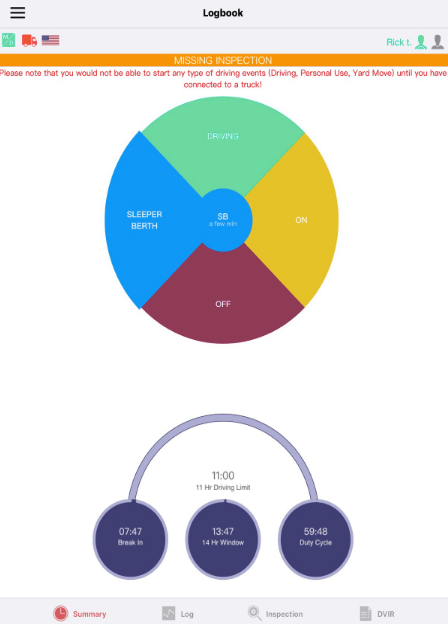
The Inspection tab will open an interface for managing the data transferred to the FMCSA and the data that was not synchronized properly. The tab will give you access to the following options: - Certify Records; - Start Inspection; - Unidentified Records; - And the full truck and trip data collected (graph, odometer readings, carrier, truck, trailer, etc.) Once you pressed “ Start Inspection”, you will be allowed to transfer the data to the safety official by clicking Transfer Data to Safety Official. You may use one of the following methods for such procedure: - Send the data directly to the FMCSA server. - Send the data to the email address provided by the FMCSA. - Send the data to the email provided by the DOT inspector.Certification Statement
Whenever the driver faces a data diagnostic or malfunctions event, the 'M/D' indicator on the application changes its color. If both parts of the icon are green, then everything is correct. If ‘D’ is red - the data diagnostic event is occurring. If ‘M’ is red - the malfunction is present. This icon may become red due to the loss of a GPS signal or loss of PT30 signal or other malfunctions. Here is the list of the types of malfunctioning may happen: GPS - you would need to re-check the connection or the GPS recording; Engine - odometer/engine hours/speed are not getting sent to the servers (in such case the error is on the PT30 side and the ELD should be sent to the mechanics for a check) Data recording - records in queue do not pass to the server (records should be deleted or pushed through again). Power Compliance Malfunctions - you can resolve it by contacting the mechanic or your motor carrier immediately. Timing Malfunctions - it can be resolved automatically or you may contact your motor carrier. Data Transfer Malfunctions - you would need to recheck the Internet connection.
User Manual: User Guide iOS .pdf