
Products with ELD "RAELD1"
Below you will find a list of products with the ELD "RAELD1" obtained from our database, including their available manuals, documentation, and images.
Click the corresponding vendor name to obtain additional information on the manufacturer, as well as contact information for further troubleshooting.
Radical ELD
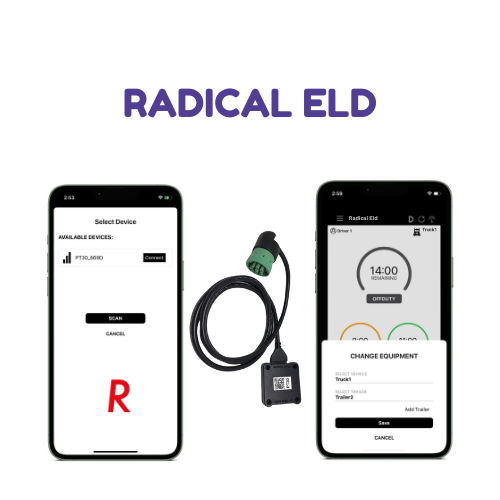
| Vendor | Device Name | Model Number | Approved Version |
|---|---|---|---|
| | Radical ELD | Android & IOS | 1.0 and above |
Data Transfer and Reporting Procedures
> Local (USB, Bluetooth) , Telematic (Web Service, Email)Malfunctions and Testing
Radical ELD enables data transfer for the current 24-hour period and the previous 7 consecutive days, accessible through both local and telematic methods: Transfer via Email: Navigate to Roadside Inspection from the left menu. On the Roadside Inspection screen, click Email. A comment box will appear. Enter a comment and click Send Logs. A success message will confirm the transfer. Transfer via Web Services: Go to Roadside Inspection in the left menu. Click Transfer on the Roadside Inspection screen. Enter a comment in the comment box, then click Send Logs. A success message will appear to confirm the transfer. Local Transfer using USB2: Connect the USB2 to the ELD device. Select Roadside Inspection from the left menu and click Transfer. Enter a comment in the comment box and select Send Logs. A success message will confirm the transfer. Local Transfer using Bluetooth: Pair the ELD with a Bluetooth device. Go to Roadside Inspection from the left menu, and click Transfer. Enter a comment in the comment box, then click Send Logs. A success message will confirm the successful transfer.Certification Statement
Radical ELD continuously monitors and records the following malfunctions as they are detected or resolved: Power Malfunction Engine Synchronization Malfunction Timing Malfunction Position Malfunction Data Recording Malfunction Data Transfer Malfunction Other Malfunctions When a malfunction is detected, an "M" indicator will appear on the display. Tapping the "M" opens a dialog box listing the detected malfunctions, along with a Clear button. Selecting Clear will remove the resolved malfunctions from the list.
User Manual:  RadicalEld Driver-Manual-v2.pdf