
Products with ELD "PM1000"
Below you will find a list of products with the ELD "PM1000" obtained from our database, including their available manuals, documentation, and images.
Click the corresponding vendor name to obtain additional information on the manufacturer, as well as contact information for further troubleshooting.
Prospero Mobi
| Vendor | Device Name | Model Number | Approved Version |
|---|---|---|---|
| | Prospero Mobi | PM1000 | 1.0+ |
Data Transfer and Reporting Procedures
> Telematic (Web Service, Email)Malfunctions and Testing
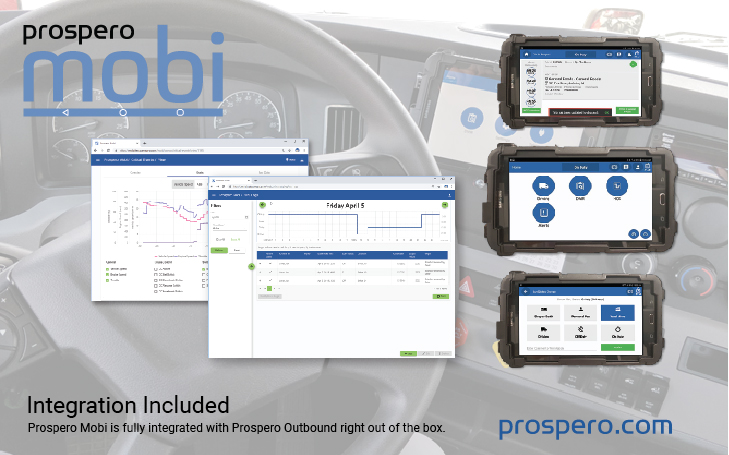
Prospero Mobi supports option one (1) of the ELD data transfer requirements – telematics. It supports both web services and email. Mobi uses a standardized single-step driver interface to initiate data transfer and allows the driver to select the data transfer method. The driver first taps the HOS icon on the Mobi home screen and then taps the DOT Inspection icon to display the daily header, 24-hour duty status grid and record of certified events. The driver can then tap a mail icon to email their driver logs to a pre-configured DOT address. The driver can also tap a web service icon to send their driver logs to a pre-configured FMCSA website.Certification Statement
Prospero Mobi alerts the driver of any system malfunction(s). The driver can navigate to a prioritized listing of the malfunction code(s) and its description. The driver has a malfunction guide, illustrated below, outlining each malfunction and the recommended steps for its resolution. Code Description Resolution P Power compliance Undock and redock the tablet. Wait a moment and see if power is established. If problem persists, contact your system administrator. E Engine synchronization compliance Undock and redock the tablet. Wait a moment and see if the engine connection is established. If problem persists, contact your system administrator. T Timing compliance Undock the tablet. Turn off the tablet, wait a moment and then turn the tablet back on. Redock the tablet and see if problem is resolved. If problem persists, contact your system administrator. L Positioning compliance Undock the tablet. Turn off the tablet, wait a moment and then turn the tablet back on. Redock the tablet and see if problem is resolved. If problem persists, contact your system administrator. R Data recording compliance Undock the tablet. Turn off the tablet, wait a moment and then turn the tablet back on. Redock the tablet and see if problem is resolved. If problem persists, contact your system administrator. S Data transfer compliance Ensure there is either WiFi or cellular connectivity and manually check for data transfer connectivity. Undock the tablet. Turn off the tablet, wait a moment and then turn the tablet back on. Redock the tablet and see if problem is resolved. If problem persists, contact your system administrator. O Other detected malfunction Contact your company system administrator.
User Manual:  Mobi Tablet User Manual PDF.pdf