
Products with ELD "OBA000"
Below you will find a list of products with the ELD "OBA000" obtained from our database, including their available manuals, documentation, and images.
Click the corresponding vendor name to obtain additional information on the manufacturer, as well as contact information for further troubleshooting.
SAE OnBoard
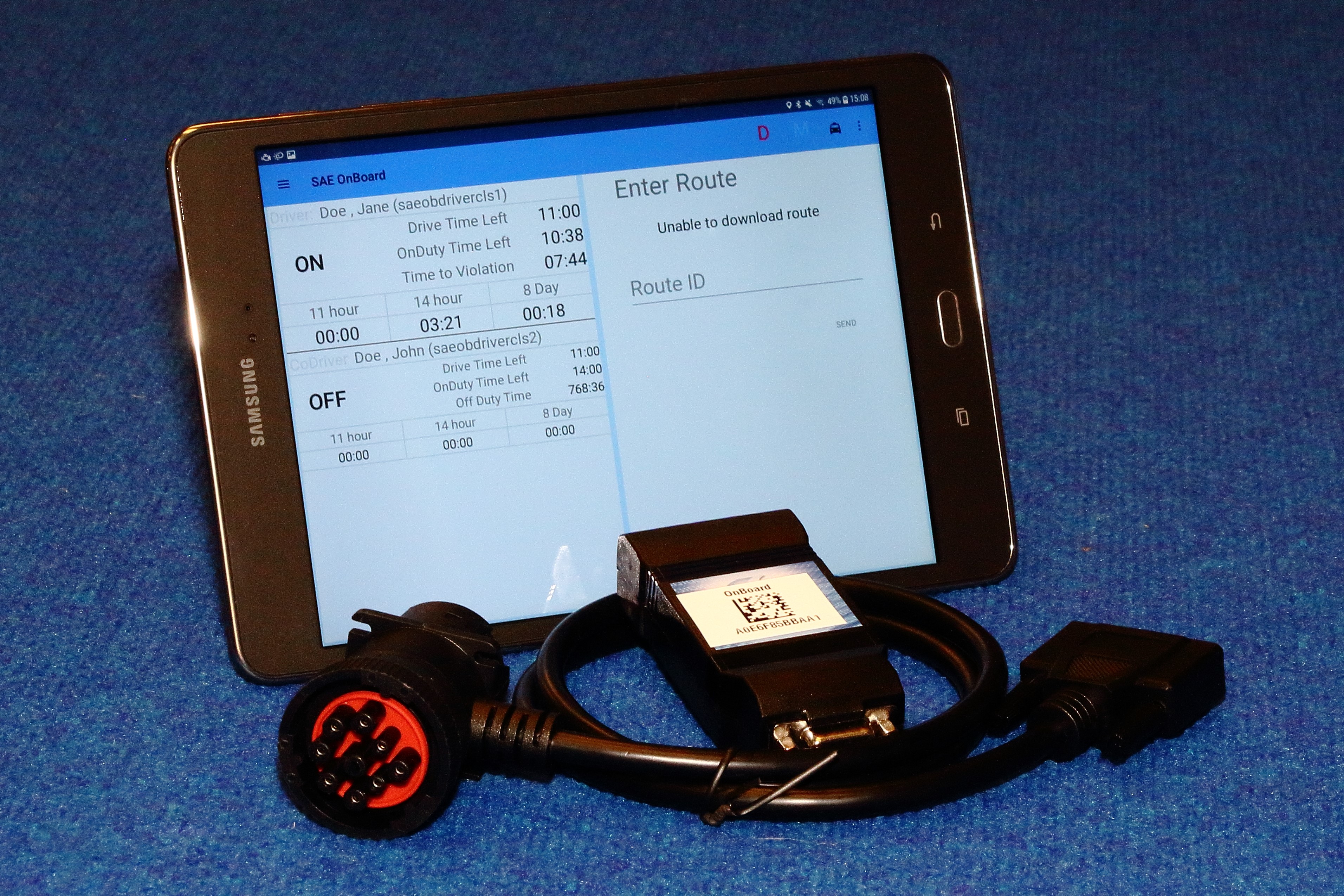
| Vendor | Device Name | Model Number | Approved Version |
|---|---|---|---|
| | SAE OnBoard | SAE OnBoard | 2.0.1.90+ |
Data Transfer and Reporting Procedures
> Telematic (Web Service, Email)Malfunctions and Testing
Supported and Certified Data Transfer Mechanisms SAE OnBoard supports Email and Web Services data transfer mechanisms for the transfer of ELD Records to the FMCSA. Step-by-Step Instructions to Produce and Transfer ELD Records to Authorized Safety Official 1. Touching the Roadside Inspection button (i.e., the “police car” icon). 2. Enter Driver’s Password for confirmation and touch the DONE button. 3. Touch the DATA TRANSFER button and then touch YES to confirm the request to begin a data transfer. 4. Touch the Email or Web Services selector button. 5. Enter a comment into the comment field and touch the TRANSFER button. 6. Touch the DONE button.Certification Statement
Summary of Malfunctions: Malfunctions Description Power compliance Meets all requirements Engine synchronization compliance Meets all requirements Timing compliance Meets all requirements Positioning compliance Meets all requirements Data transfer compliance Meets all requirements Data recording compliance Only generated in catastrophic conditions Other Not currently generated
User Manual:  SAE OnBoard v2.0.1.90 User's Manual.pdf
SAE OnBoard
| Vendor | Device Name | Model Number | Approved Version |
|---|---|---|---|
| | SAE OnBoard | SAE OnBoard | 2.2+ |
Data Transfer and Reporting Procedures
> Telematic (Web Service, Email)Malfunctions and Testing
Supported and Certified Data Transfer Mechanisms SAE OnBoard supports Email and Web Services data transfer mechanisms for the transfer of ELD Records to the FMCSA. Step-by-Step Instructions to Produce and Transfer ELD Records to Authorized Safety Official 1. Touching the Roadside Inspection button (i.e., the “police car” icon). 2. Enter Driver’s Password for confirmation and touch the DONE button. 3. Touch the DATA TRANSFER button and then touch YES to confirm the request to begin a data transfer. 4. Touch the Email or Web Services selector button. 5. Enter a comment into the comment field and touch the TRANSFER button. 6. Touch the DONE button.Certification Statement
Summary of Malfunctions: Malfunctions Description Power compliance Meets all requirements Engine synchronization compliance Meets all requirements Timing compliance Meets all requirements Positioning compliance Meets all requirements Data transfer compliance Meets all requirements Data recording compliance Only generated in catastrophic conditions Other Not currently generated
User Manual: SAE OnBoard v2.2.0.0 User's Manual.pdf