
Products with ELD "EZELD1"
Below you will find a list of products with the ELD "EZELD1" obtained from our database, including their available manuals, documentation, and images.
Click the corresponding vendor name to obtain additional information on the manufacturer, as well as contact information for further troubleshooting.
Stoneridge EZ-ELD - Self Revoked as of 1737559045
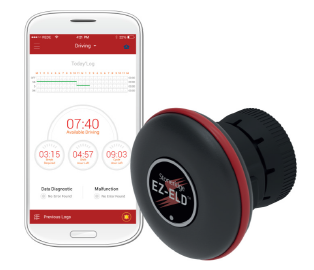
| Vendor | Device Name | Model Number | Approved Version |
|---|---|---|---|
| | Stoneridge EZ-ELD | ELD1.0 | App 1.0 or higher |
Data Transfer and Reporting Procedures
> Local (Bluetooth) , Telematic (Web Service)Malfunctions and Testing
EZ-ELD supports Option 1 described on the FMCSA regulation - Telematic type. The device can transfer data by either wireless web services or email, There is also a standard graphical HOS display for roadside inspections. The EZ-ELD has a simple single-step data transfer process so the user can quickly send driver records to authorized officials during inspections. In the Mobile Application, the user can tap the “inspection icon” in the top right corner of the screen, or from the left side menu tap “DOT Inspection”. After that, the data transfer options -ON SCREEN, EMAIL or WEBSERVICE- are presented and can be selected by tapping the corresponding button, starting the data transfer or ON SCREEN inspection. Note that once the SEND button is tapped on the App, a command is sent to the EZ-ELD Back Office Software to then automatically send the required data to the FMCSA. If an authorized safety official provides a key phrase or code during an inspection, this can be included as a comment in the ELD record. In addition the data transfer process can also be performed through the Back Office web based software located at https://www.ez-eldsoftware.com. For that, a support account is needed. After the login the support user can select “transfer data” from the left side menu to start the data transfer process. After the selection, the support user is presented with options to select the transfer method - email or web service -, the desired period and the selected driver profiles.Certification Statement
The Malfunction codes used by the EZ-ELD strictly follow the FMCSA ELD mandate requirements and conditions; a brief summary of the used codes is presented below. Error Code: P Power Compliance Malfunction This code indicates an error in the initialization of the EZ ELD due to an internal hardware or firmware fault. Error Code: E Engine Synchronization Compliance Malfunction This code indicates that the EZ-ELD did not receive vehicle diagnostic information from the diagnostic data bus due to a faulty connection, incompatible protocol or absence of necessary data. Error Code: T Timing Compliance Malfunction This code indicates a problem with the internal clock of the device due to an internal error or lack of initial GPS lock. Error Code: L Positioning Compliance Malfunction This code indicates a problem with GPS positional data due to lack of signal or not meeting the requirements from the ELD mandate. Error Code: R Data Record Compliance Malfunction This code indicates a problem with data recording on the device due to lack of storage space, hardware or software faults. The error code will be triggered when the records reach 95% of the available storage space. Error Code: S Data Transfer Compliance Malfunction This code indicates a problem with the data transfer synchronization between the EZ-ELD device and the Back Office web system.
User Manual:  EZ-ELD User Manual - FMCSA.pdf
Stoneridge EZ-ELD Android - Self Revoked as of 1720792237

| Vendor | Device Name | Model Number | Approved Version |
|---|---|---|---|
| | Stoneridge EZ-ELD Android | ELD1.0 | App 1.0 or higher |
Data Transfer and Reporting Procedures
> Telematic (Web Service)Malfunctions and Testing
EZ-ELD supports Option 1 described on the FMCSA regulation - Telematic type. The device can transfer data by either wireless web services or email, There is also a standard graphical HOS display for roadside inspections. The EZ-ELD has a simple single-step data transfer process so the user can quickly send driver records to authorized officials during inspections. In the Mobile Application, the user can tap the “inspection icon” in the top right corner of the screen, or from the left side menu tap “DOT Inspection”. After that, the data transfer options -ON SCREEN, EMAIL or WEBSERVICE- are presented and can be selected by tapping the corresponding button, starting the data transfer or ON SCREEN inspection. Note that once the SEND button is tapped on the App, a command is sent to the EZ-ELD Back Office Software to then automatically send the required data to the FMCSA. If an authorized safety official provides a key phrase or code during an inspection, this can be included as a comment in the ELD record. In addition the data transfer process can also be performed through the Back Office web based software located at https://www.ez-eldsoftware.com. For that, a support account is needed. After the login the support user can select “transfer data” from the left side menu to start the data transfer process. After the selection, the support user is presented with options to select the transfer method - email or web service -, the desired period and the selected driver profiles.Certification Statement
The Malfunction codes used by the EZ-ELD strictly follow the FMCSA ELD mandate requirements and conditions; a brief summary of the used codes is presented below. Error Code: P Power Compliance Malfunction This code indicates an error in the initialization of the EZ ELD due to an internal hardware or firmware fault. Error Code: E Engine Synchronization Compliance Malfunction This code indicates that the EZ-ELD did not receive vehicle diagnostic information from the diagnostic data bus due to a faulty connection, incompatible protocol or absence of necessary data. Error Code: T Timing Compliance Malfunction This code indicates a problem with the internal clock of the device due to an internal error or lack of initial GPS lock. Error Code: L Positioning Compliance Malfunction This code indicates a problem with GPS positional data due to lack of signal or not meeting the requirements from the ELD mandate. Error Code: R Data Record Compliance Malfunction This code indicates a problem with data recording on the device due to lack of storage space, hardware or software faults. The error code will be triggered when the records reach 95% of the available storage space. Error Code: S Data Transfer Compliance Malfunction This code indicates a problem with the data transfer synchronization between the EZ-ELD device and the Back Office web system.
User Manual: EZ-ELD User Manual - FMCSA.pdf